Brand application:

2.PowerPoint presentations

On this page:

    Introduction

    To maintain a consistent and professional look across all our presentations, we’ve created a set of corporate PowerPoint templates.

    These templates reflect our brand identity and are designed to make it easy for everyone to create polished, on-brand presentations.

    Our PowerPoint templates

    We have created two corporate PowerPoint templates, one generic and one to illustrate our five priorities, in each of the five respective colours.

    When using PowerPoint, Gill Sans Nova and Arial Nova should be used to ensure the full range of weights are available in each typeface.

    You can download the latest versions of the templates below. We encourage everyone to use these templates as the standard for internal and external presentations – it’s a simple way to ensure we’re consistent with council branding.

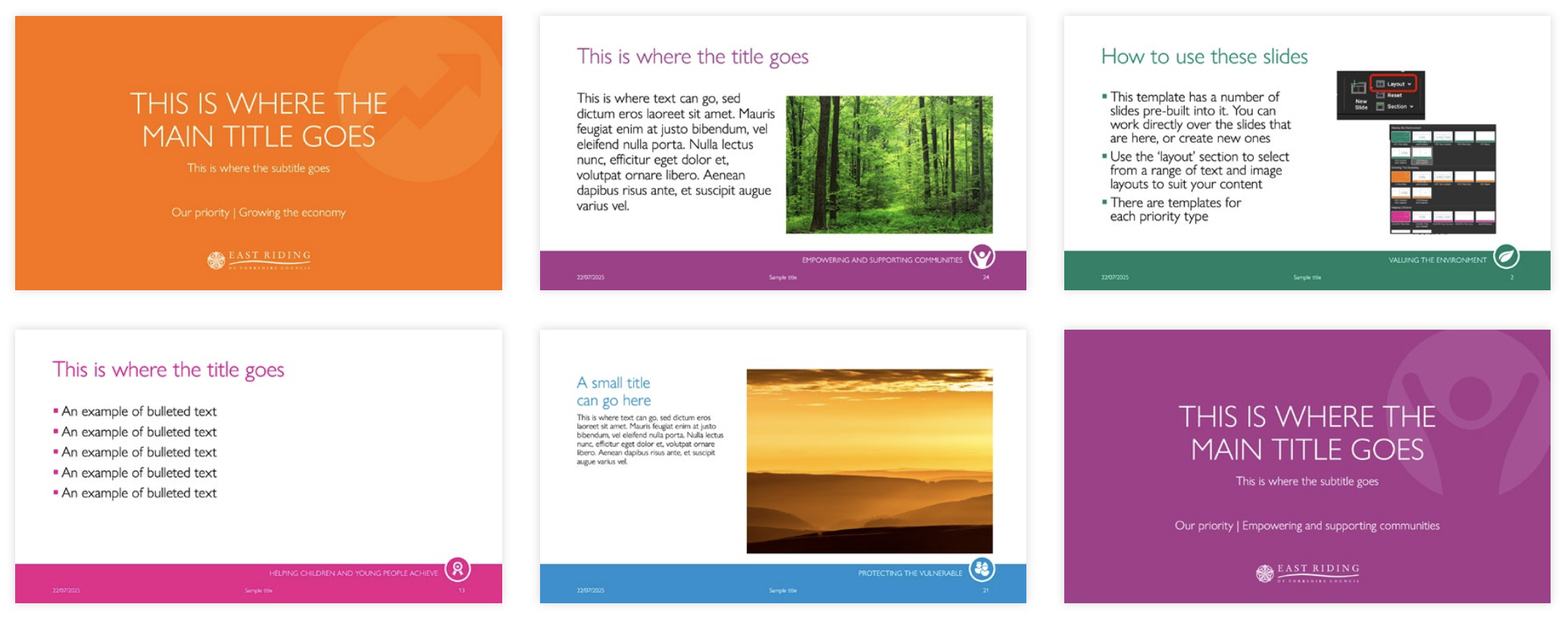
    The image shows the generic PowerPoint template that should be used when creating presentation.

    Generic template

    The image shows the five council priority templates with the colour that represents each priority.

    Council priorities specific template

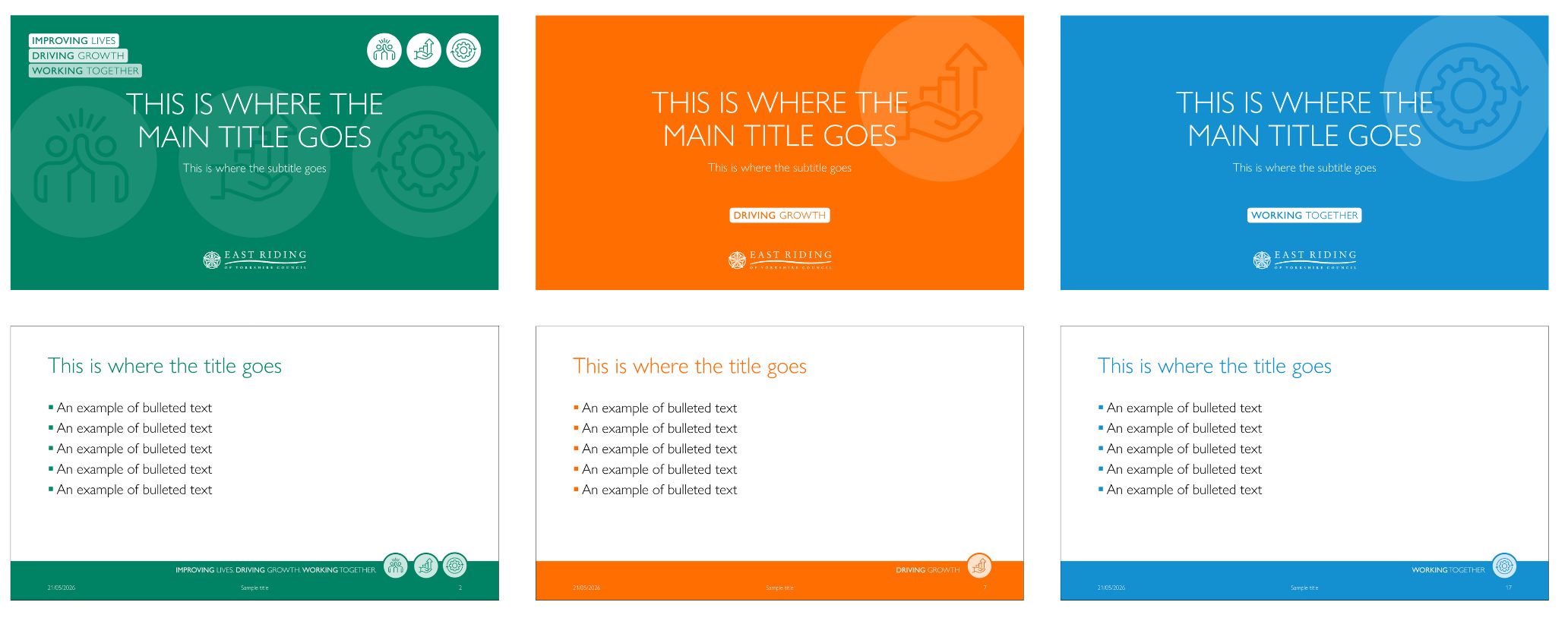
    The image shows our council mission templates with the colour in green, orange and blue.

    Council mission template

    Take regular screen breaks

    Make sure you take regular screen breaks to give your eyes the rest they need. Here are some tips to help you do this:

    1. Vary your tasks

    Try to plan and switch between screen and non-screen work so that you naturally get a break.

    2. Set a timer

    Take frequent, short breaks every hour with 5 to 10 minutes away from your screen, this could be to:

    • make a drink
    • do some stretches
    • go to the printer.

    3. Follow the 20-20-20 rule

    Every 20 minutes look at something 20 feet away for 20 seconds to give your eye muscles a rest.

    4. Remember to blink!

    Blinking is the eye’s way of getting the moisture it needs on its surface. It also cleans the surface of your eye of any debris and washes it out with fresh tears.

    If you're talking to someone or looking at objects in the distance, you normally blink 30 to 40 times per minute. But when you are reading on a screen, your blinking naturally slows to 3 to 5 times per minute.

    By making a conscious effort to blink more often, this will help to keep the surface of your eyes from drying out and also sharpen your vision.

    Make your display work for you

    1. Position your screen correctly

    If your screen isn’t set up correctly, you may be unnecessarily straining your eyes.

    Your eyes should be roughly the same height as the top of the screen. If you find yourself leaning forward to peer at the screen bring the screen closer and/or adjust the font size so it is easier for you to read.

    2. Reduce glare and reflections

    Make sure you have a clear view of the screen with no glare or reflections.

    If daylight is shining on your screen you could:

    • close the blinds
    • tilt the screen
    • reposition yourself and the screen.

    3. Check image quality

    Make sure that your screen display is clear and flicker free. You may need to adjust the colours, brightness or contrast to make it clearer.

    Any text should be crisp and readable. Try adjusting the zoom or making the text larger if you experience difficulty.

    Get your eyes checked regularly

    As a regular DSE user, you should get your eyes checked every 2 years.

    You can get a full eye examination at no cost to you. If you need glasses solely for the use of digital screen equipment, you can also get a contribution towards this.

    Loading asset information...
    Employee confidential helpline

    0330 380 0658

    Speak to fully qualified counsellors and support specialists at any time, 365 days a year.

    Use code 107574 to access the online resources.

    More about the employee assistance programme

    Loading news articles...
    Search the phonebook
    Search by first or last name, extension number, service name such as 'council tax' or venue such as 'Bridlington library'

    Alerts